 Roamtty
Documentation
Roamtty is an SSH client. AI coding tools (Claude Code, Codex, Grok and others) run on your own server; Roamtty starts them from your phone, shows what they are doing and makes the terminal easy to use by touch. There is no Roamtty backend: connections go only to the hosts you add.
Quick start
- Enable SSH on your server, then install the AI command-line tool and sign in to it.
- In Roamtty, tap + on the Hosts page to add the server, then choose Install plugins from its menu to get tmux and mosh.
- Tap AI Agent, pick a folder and start working. Locking the phone or losing signal doesn't stop the task; Roamtty reattaches when you come back.
Away from the server's network? Use Tailscale instead of exposing SSH to the internet.
Prepare a server
Any Linux, macOS, BSD or Windows machine you can SSH into will do.
- Ubuntu / Debian:
sudo apt install openssh-server - macOS: System Settings → General → Sharing → turn on Remote Login
- Windows: add “OpenSSH Server” under Optional features, then run
Start-Service sshdin an administrator PowerShell
Install claude, codex or grok following its own instructions and sign in once on the server. Roamtty never handles your account or API key.
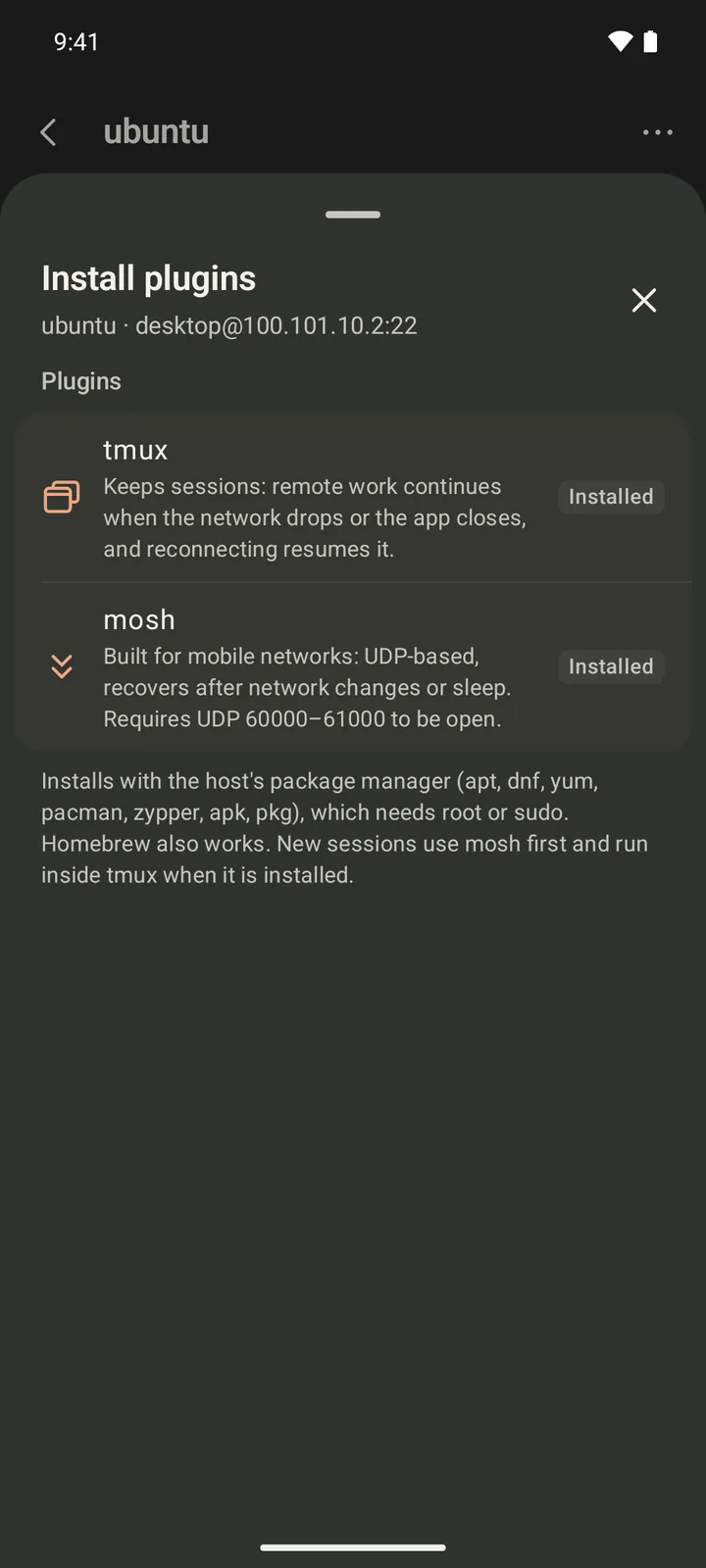
No need to install tmux (keeps tasks running when you disconnect) or mosh (survives network changes) by hand: choose Install plugins from the host menu and Roamtty installs them with the host's package manager (sudo on Linux, never stored; Homebrew on macOS; psmux via winget on Windows).
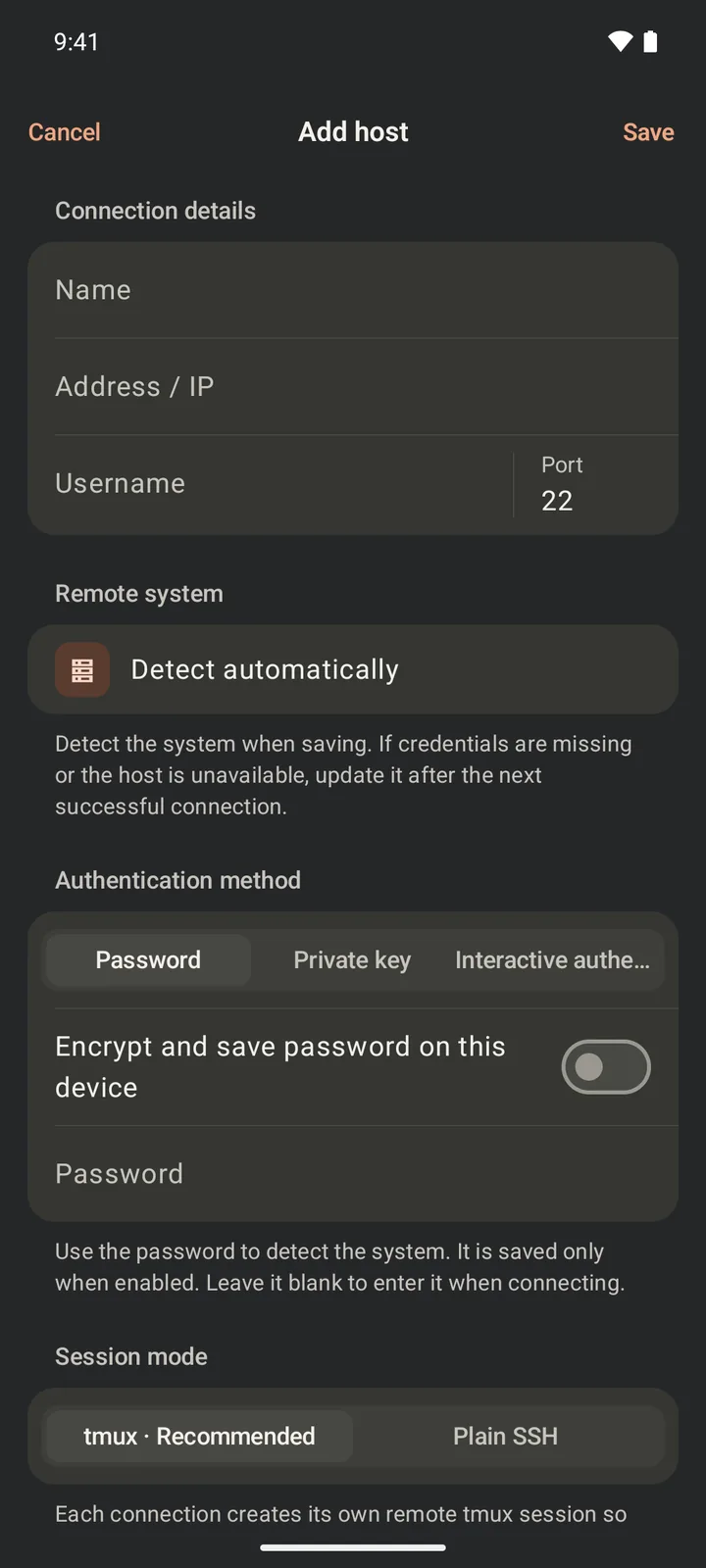
Add a host
Tap + on the Hosts page and fill in a name, the address (domain, LAN IP or Tailscale 100.x.y.z), username and port.
Sign in with a Password, a Private key (Ed25519 / RSA, encrypted keys supported) or Interactive authentication (one-time codes and similar). A password is stored only if you turn on “Encrypt and save password on this device”. Leave the session mode on tmux.
On first connect Roamtty shows the server's SHA-256 fingerprint; tap “Trust and connect”.
Optional: check the fingerprint
To make sure you reached your own server (say, on public Wi-Fi), run this on the server and check that the SHA256:… in the output matches the one Roamtty shows:
for f in /etc/ssh/ssh_host_*_key.pub; do ssh-keygen -lf "$f"; doneIf the fingerprint later changes, the connection is blocked. Once you've confirmed the server was reinstalled or rekeyed, choose “Verify again…” from the host menu.
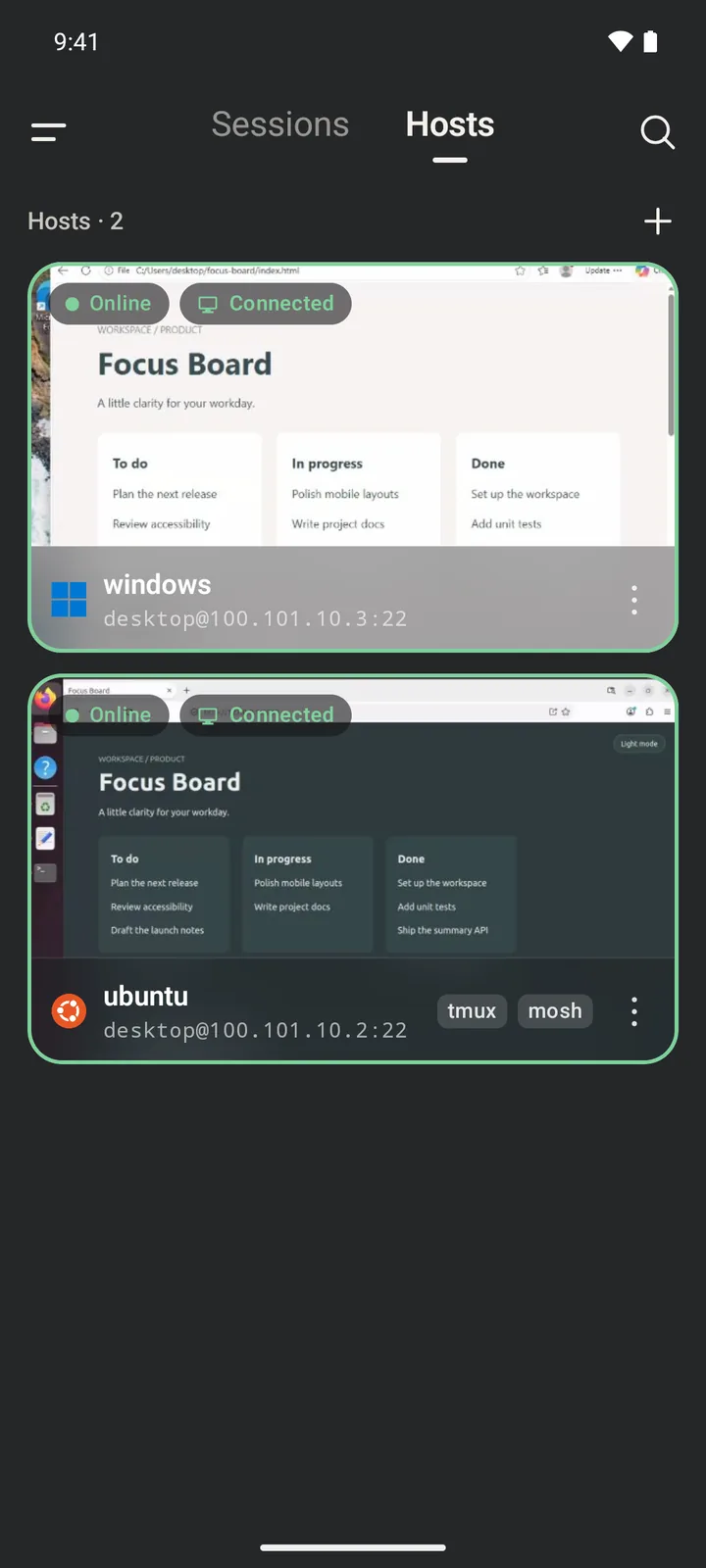
Host cards show the system icon, whether the host is online and how long the connection took. The ⋮ menu on a card opens a terminal or files, starts an AI agent, installs plugins, or edits or deletes the host.
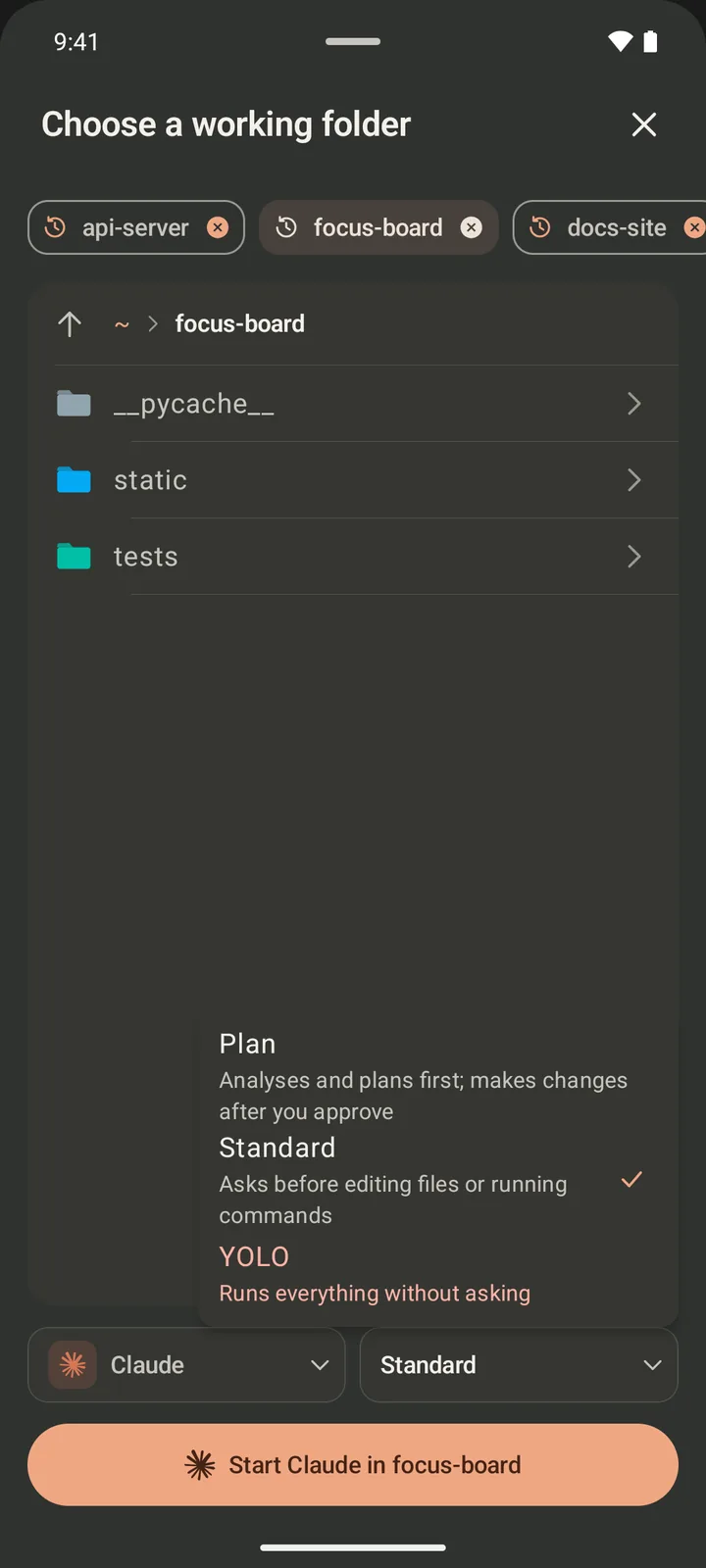
Start an AI agent
Tap AI Agent (also in the host menu), then pick a starting folder, the agent and a permission mode:
- Plan / Read-only: Claude Code plans first and edits only after you approve; Codex and Grok run in a read-only sandbox.
- Standard: asks before editing files or running commands.
- YOLO: runs everything without asking. Use it only when you trust the task and the machine.
Your last choices are remembered and recent folders appear at the top. Open terminal starts a plain shell instead.
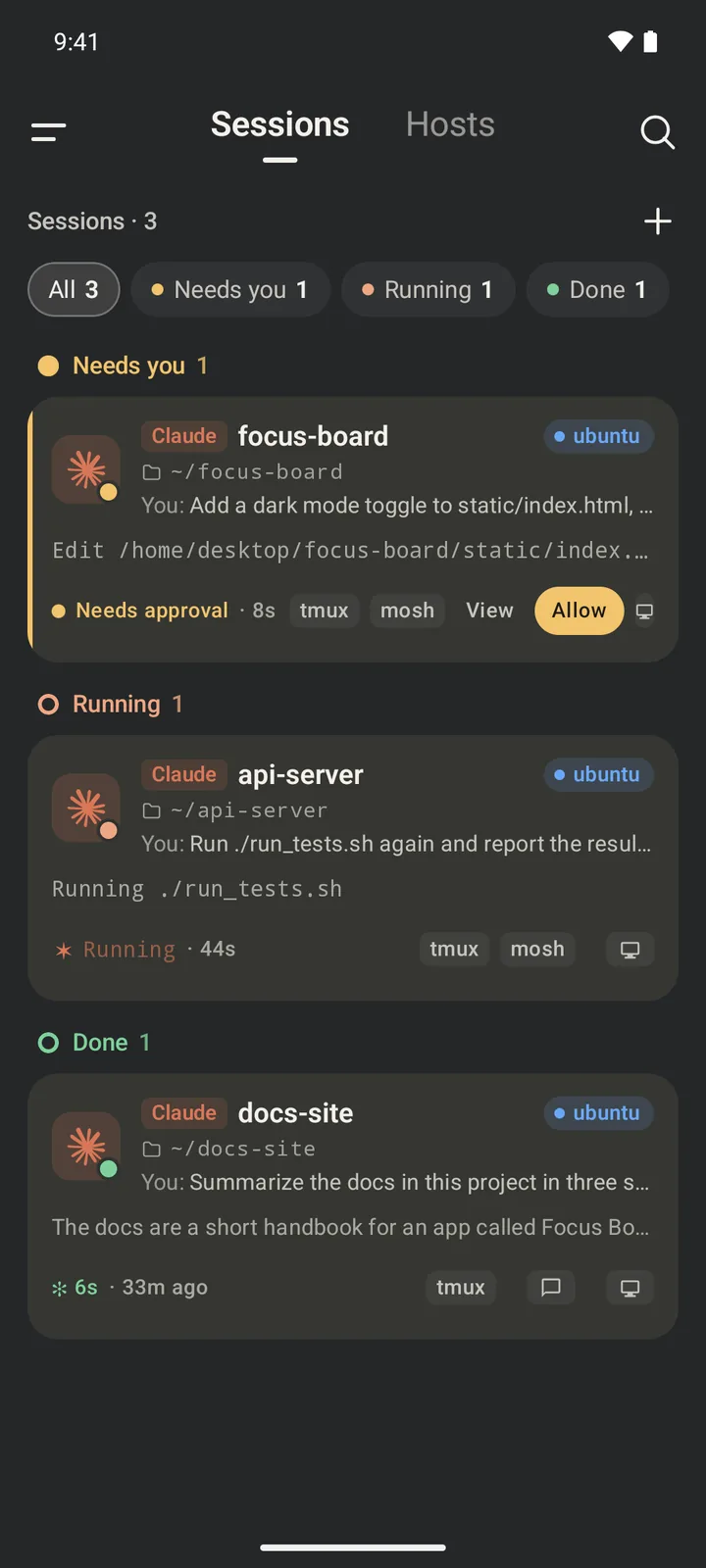
Sessions
The home page groups every session into Needs you, Running and Done, titled with the agent's current task.
- Tap Allow on a card that needs you to approve without opening the terminal.
- Done cards show a summary of the answer; tap Reply to send the next instruction right there.
- Each session is its own tmux session on the server. Lock the phone, lose signal or close the app and the task keeps running; tap the card to reattach.
- Close in the card menu ends the remote task. If the server is unreachable, long-press to force delete, which removes only the card on your phone.
- Each host keeps at most 8 sessions.
With mosh installed the terminal prefers mosh (UDP) and falls back to SSH after 8 seconds without a reply.
Terminal
| Gesture | Does |
|---|---|
| Tap the cursor's line | Shows the keyboard (taps elsewhere don't) |
| Double tap | Tab completion; ↑ ↓ ← keys appear next to the ghost to pick a completion |
| Triple tap | Paste the clipboard |
| Swipe left or right | ← / →; hold after swiping to jump to the start or end of the line |
| Swipe up or down | Scroll back through history (tmux's own history in a tmux session) |
| Pinch | Font size |
| Long-press | Drag the cursor with a magnifier on the command line; select and copy elsewhere |
| Tap a link | Opens it in the browser, or in the GitHub app for GitHub links |
An Esc key sits at the end of the cursor's line and turns into Enter once you stop typing.
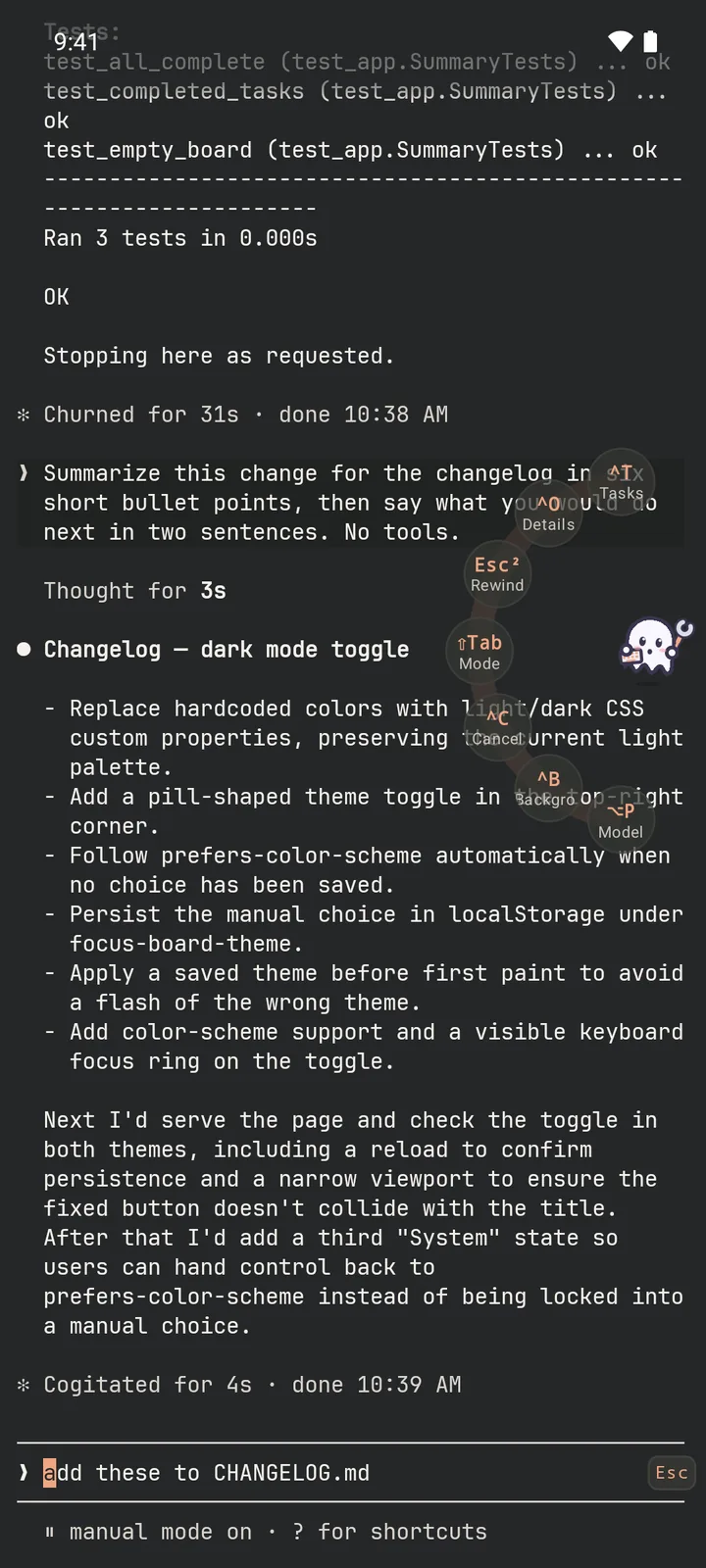
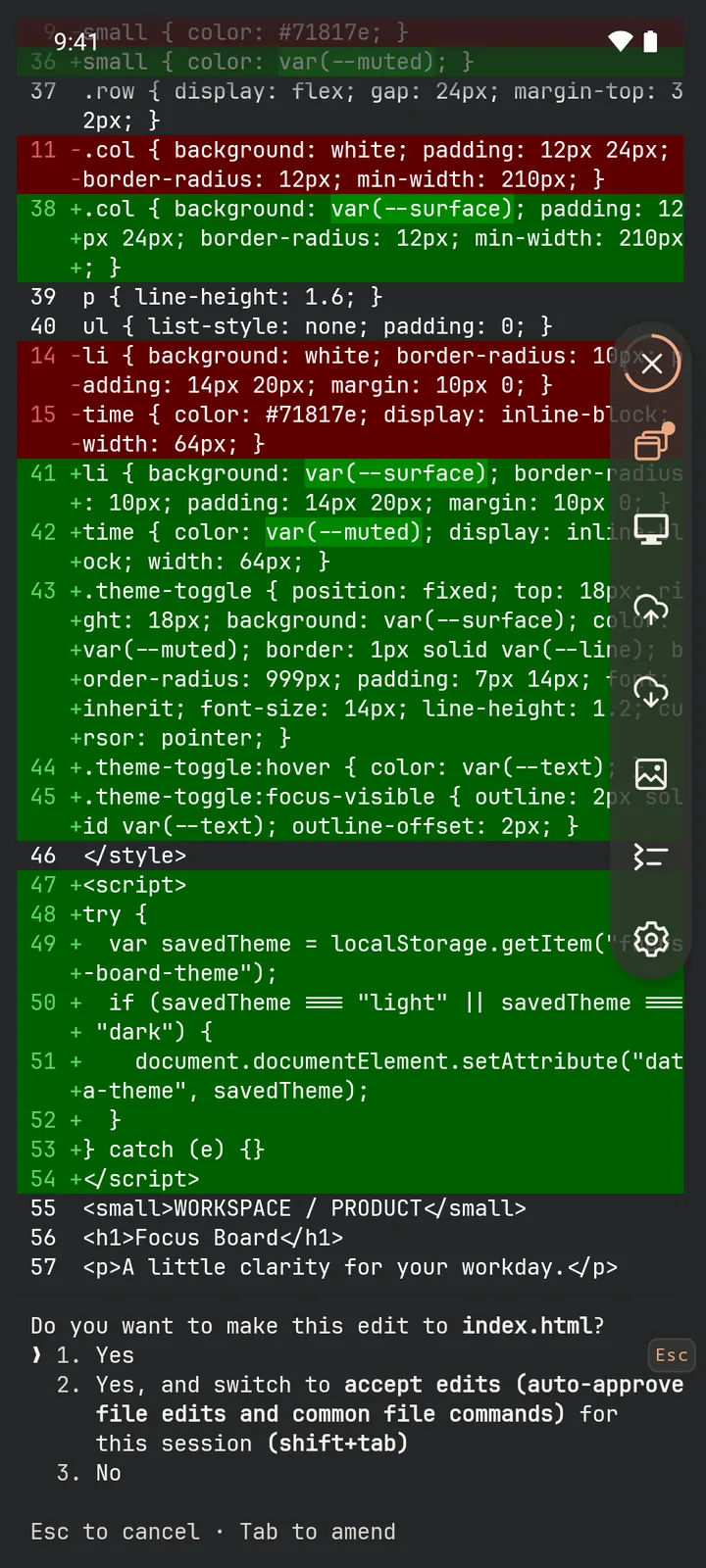
The ghost with a wrench at the screen edge: hold it for a shortcut ring (Esc, Ctrl, Shift, F1–F12 and more, depending on the agent in front) and release on a key to send it; tap it for the action bar:
- Session menu: back to the host, close or restart this session, or switch to another one
- Upload file / Download file
- Insert image: up to 9 at a time; once uploaded, their remote paths are typed into the command line for the agent
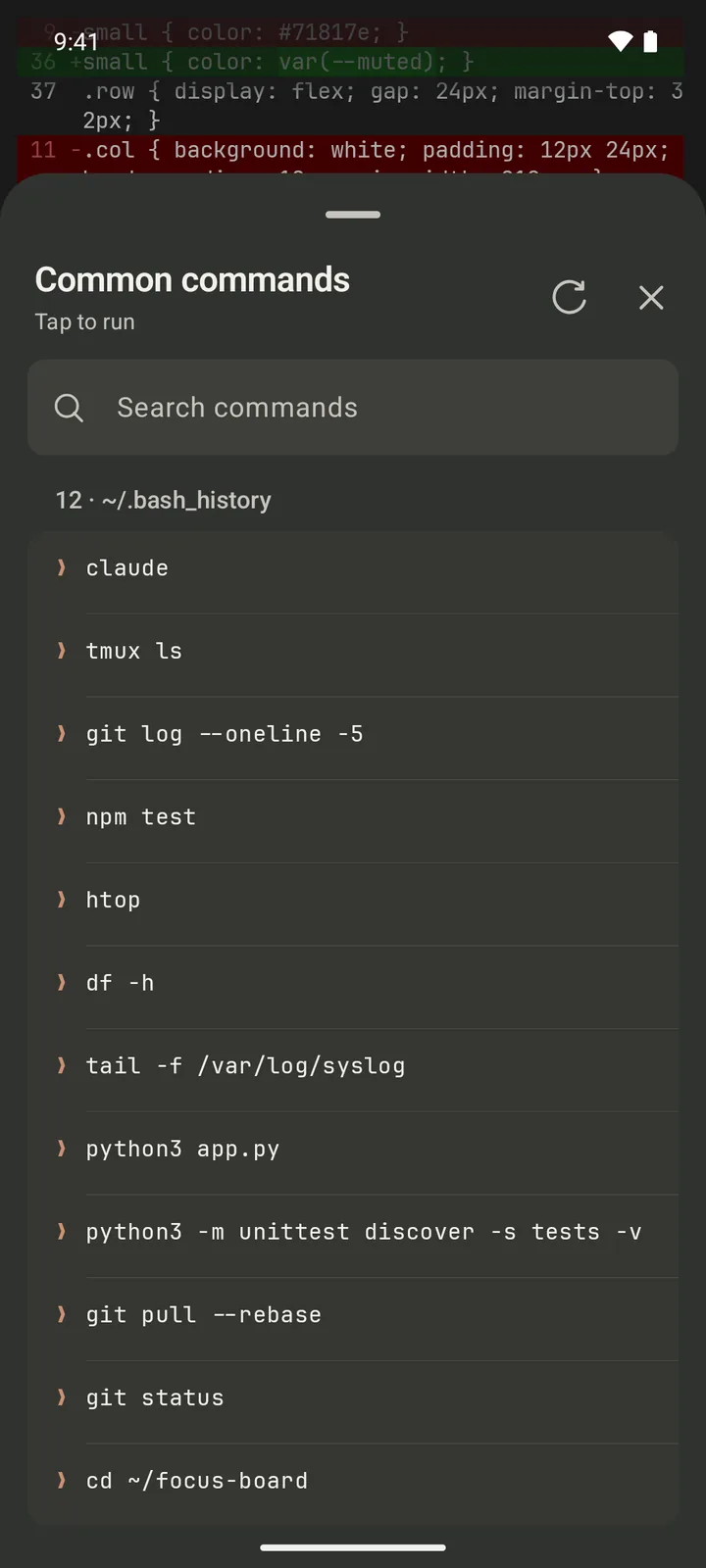
- Common commands: your shell history from the server; tap one to run it
- Settings: Edit text (write a long prompt in a large editor before sending), pin or hide the controls, paste, and font size
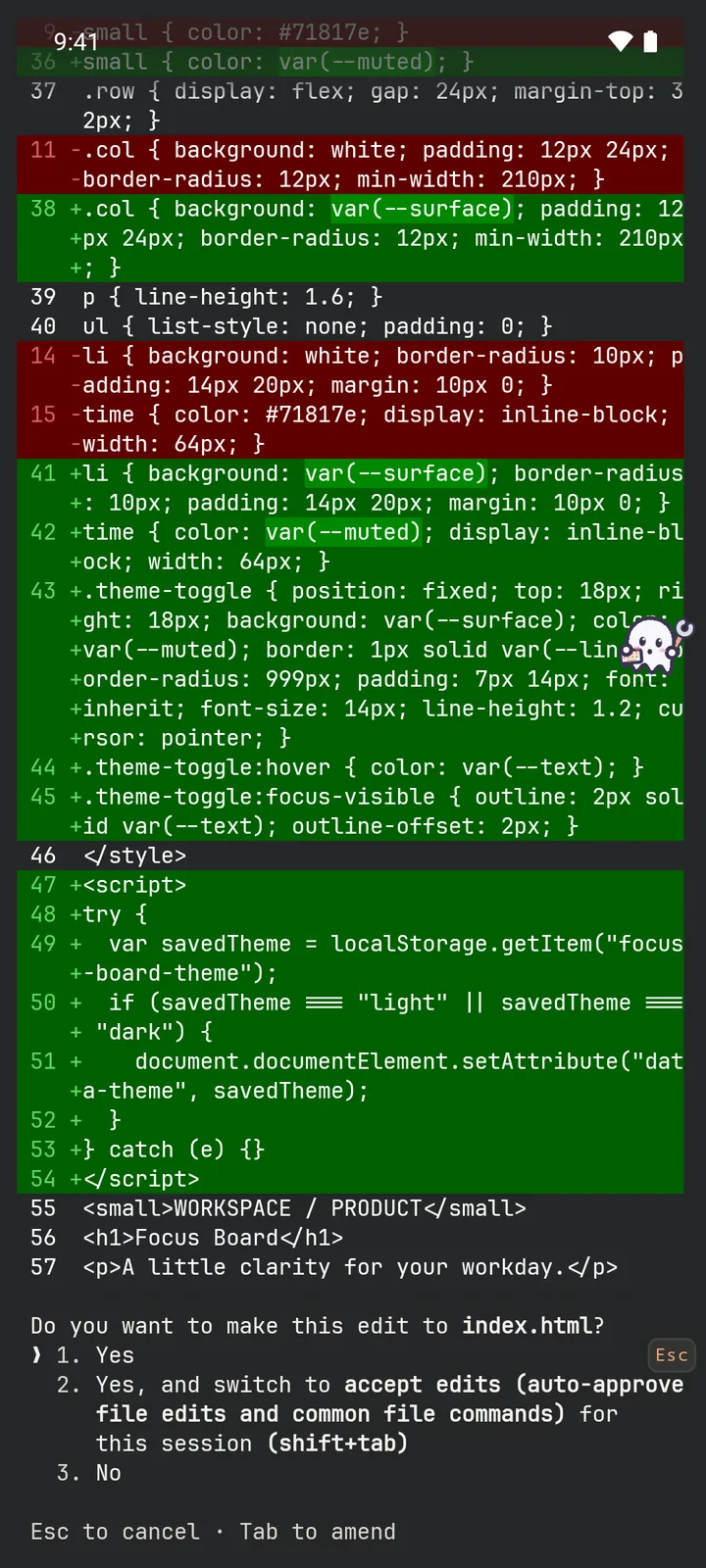
Files and monitoring
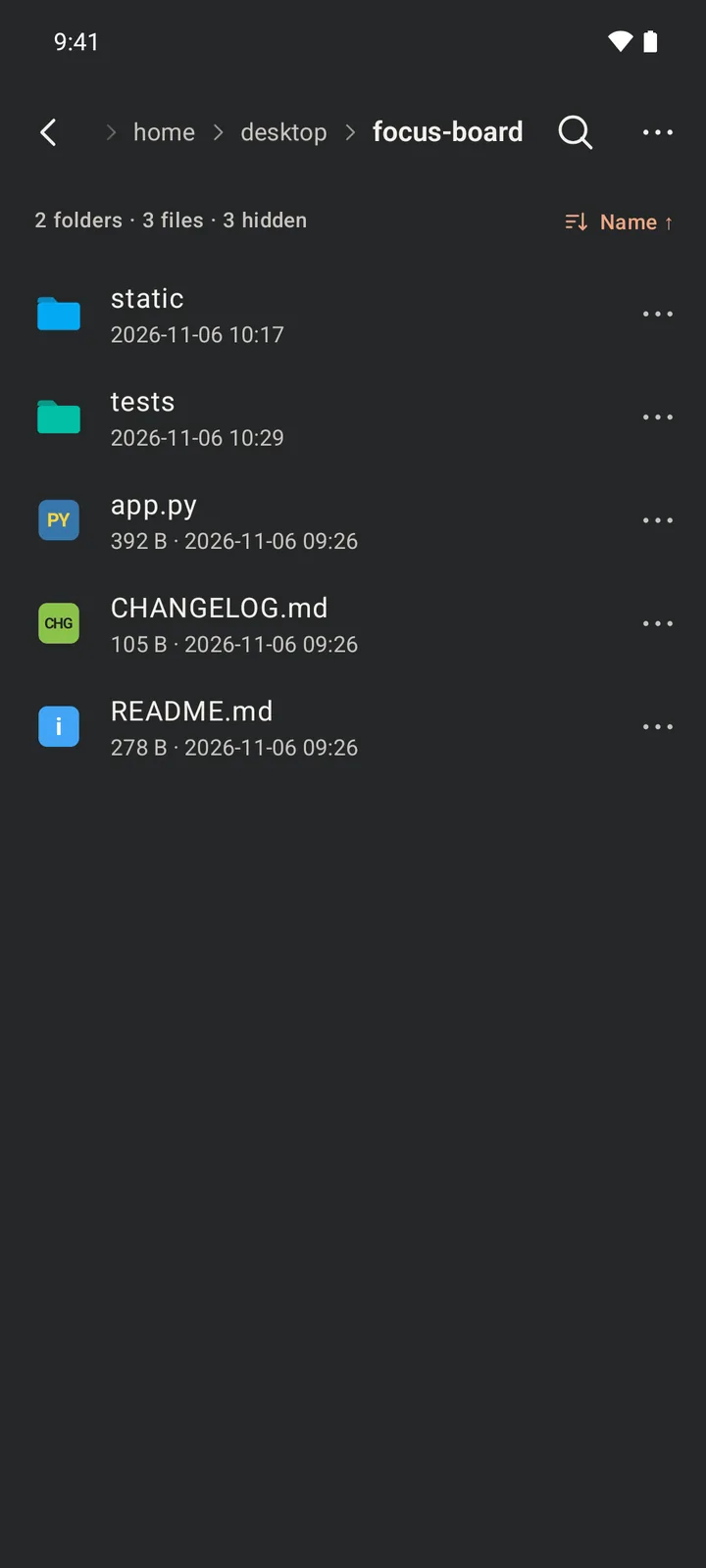
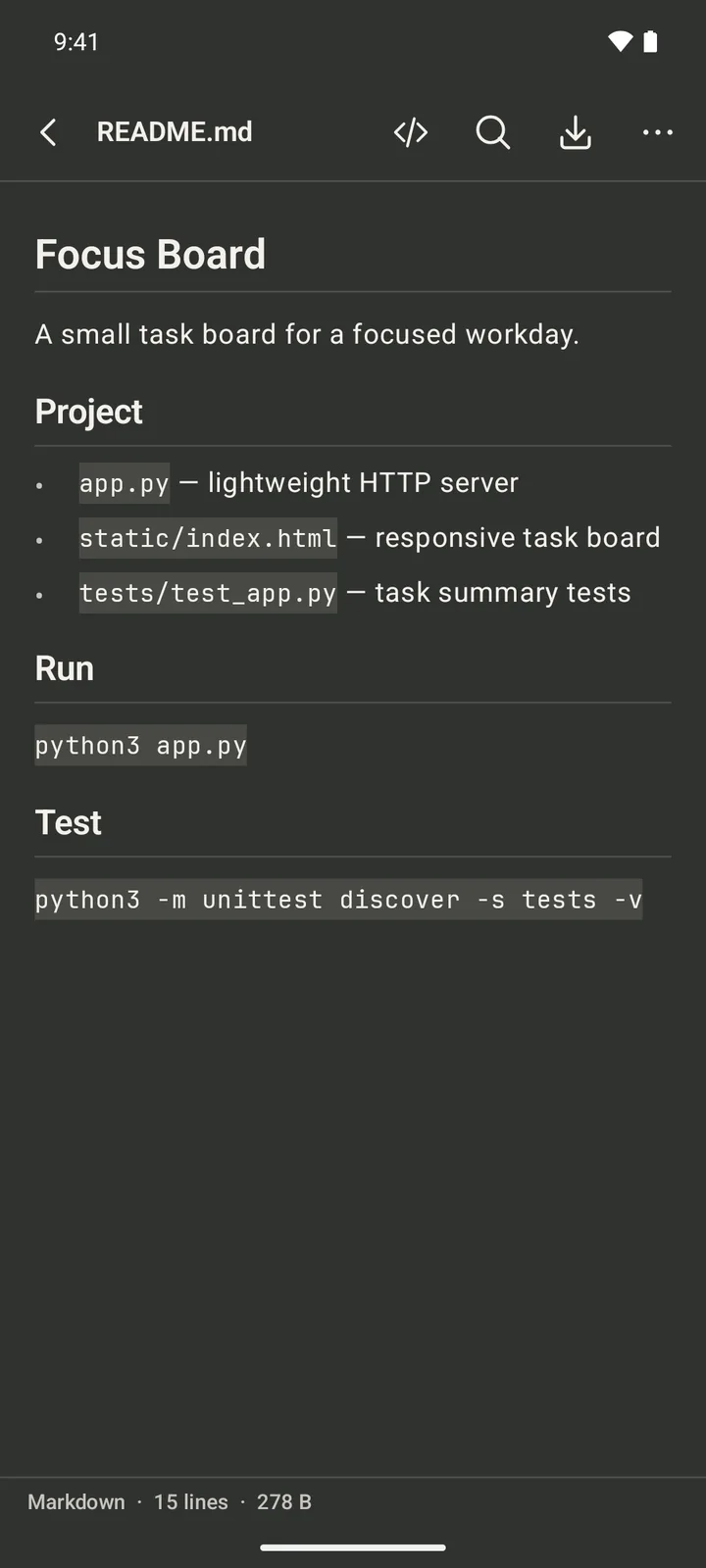
View files in the host menu browses the server over SFTP: preview code (with syntax highlighting), Markdown and images and find text in them; rename, delete, create folders, copy paths and download one file or several; or open a terminal or start an AI agent in the current folder. The first download asks for a download folder on your phone, and later ones are saved there. Share images to Roamtty from your gallery or other apps to upload them.
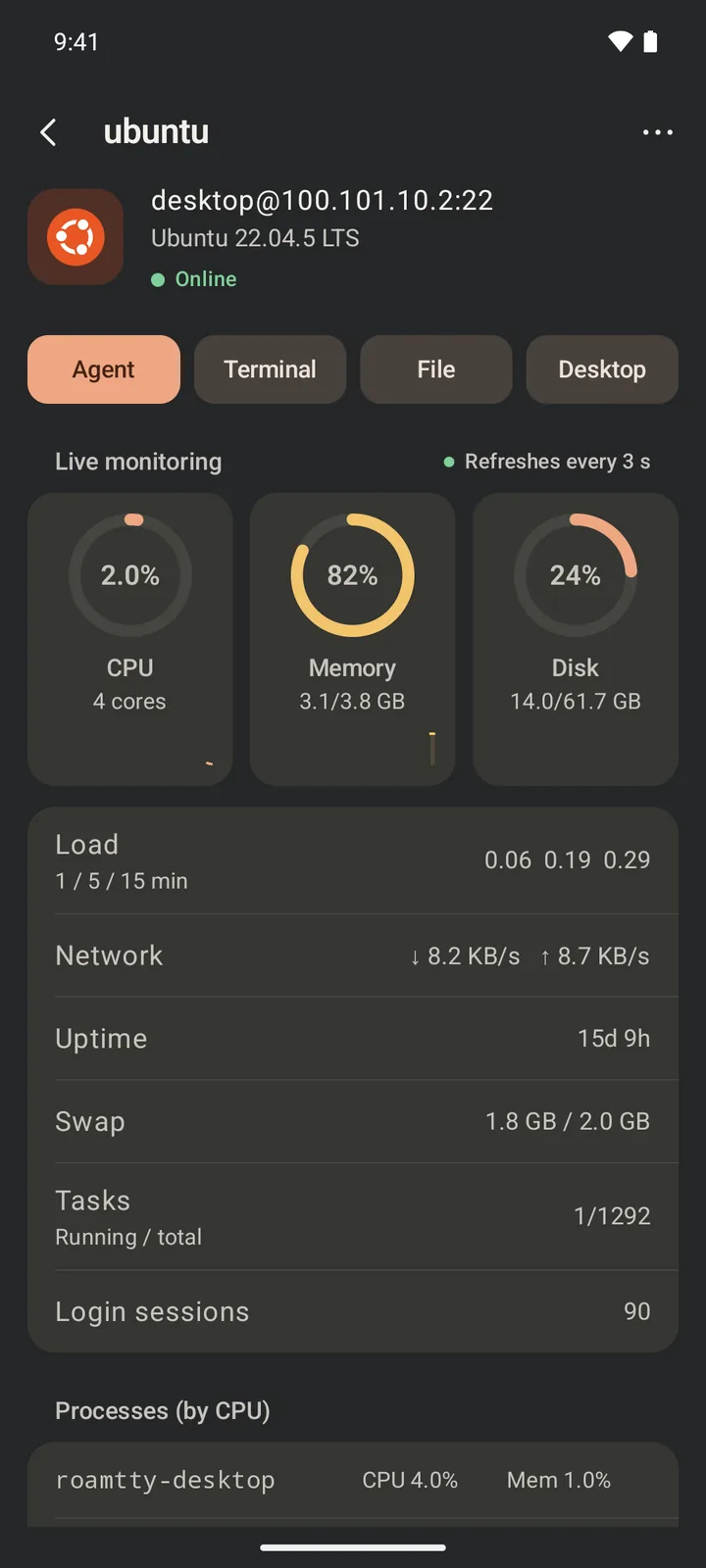
Tap a host card for live CPU, memory, disk, network, GPU and top processes, handy for checking whether a build or test run is stuck; the buttons at the top start an AI agent, open a terminal or browse files.
Remote desktop
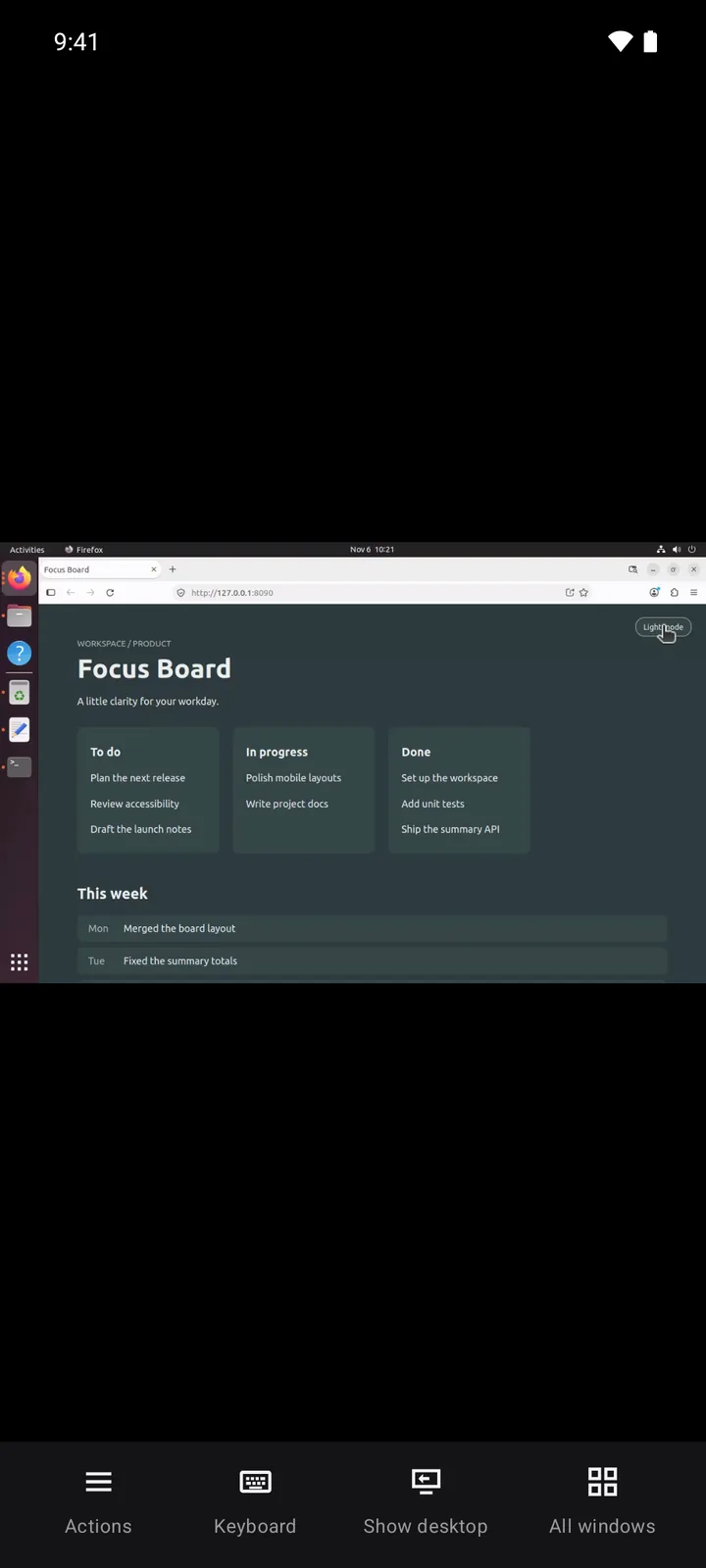
A host that can open a desktop shows a desktop button at the bottom right of its session cards. For a host with no session, tap Desktop on its details page. The first time, the app installs the desktop plugin for you, with nothing to configure. After you leave the desktop page the connection stays up in the background (10 minutes by default, adjustable in Settings), and it comes back in about a second.
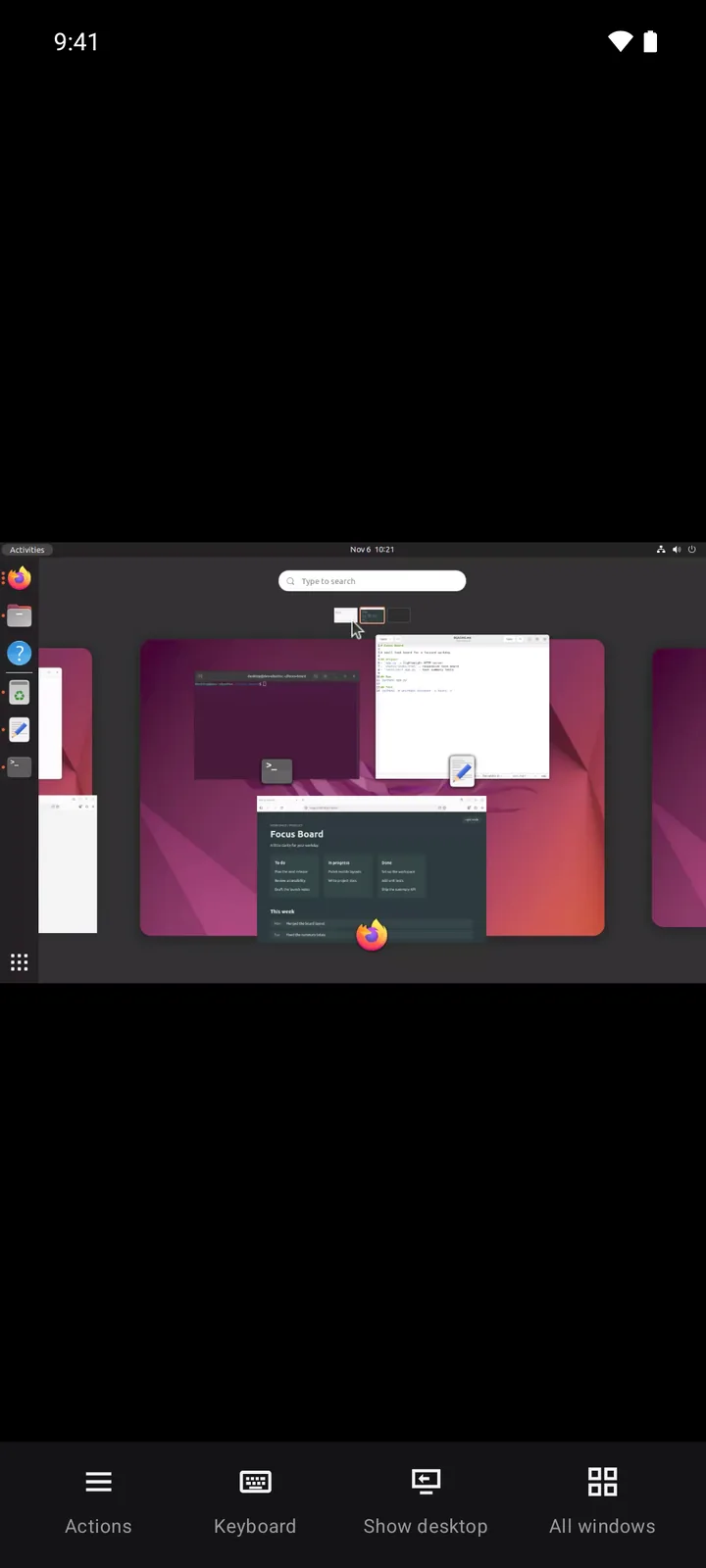
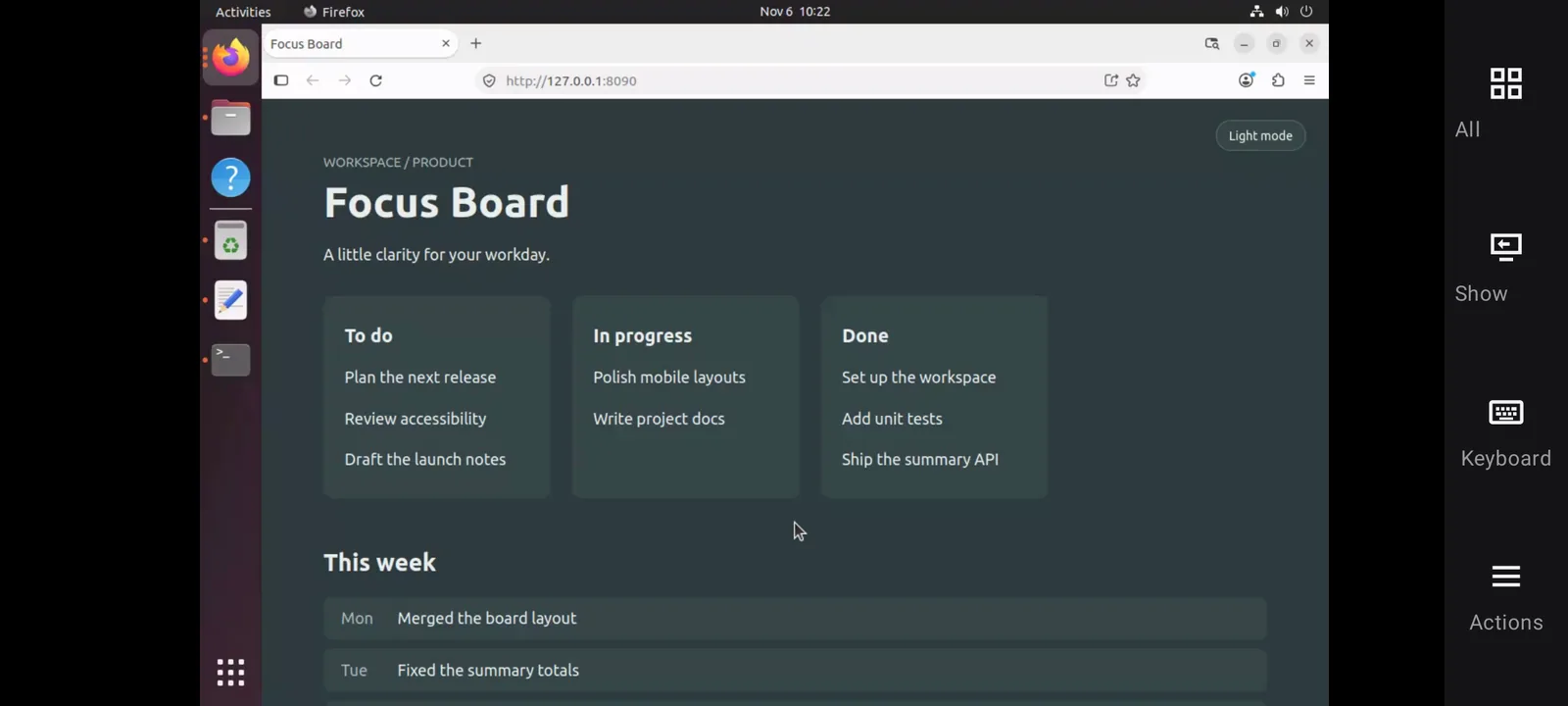
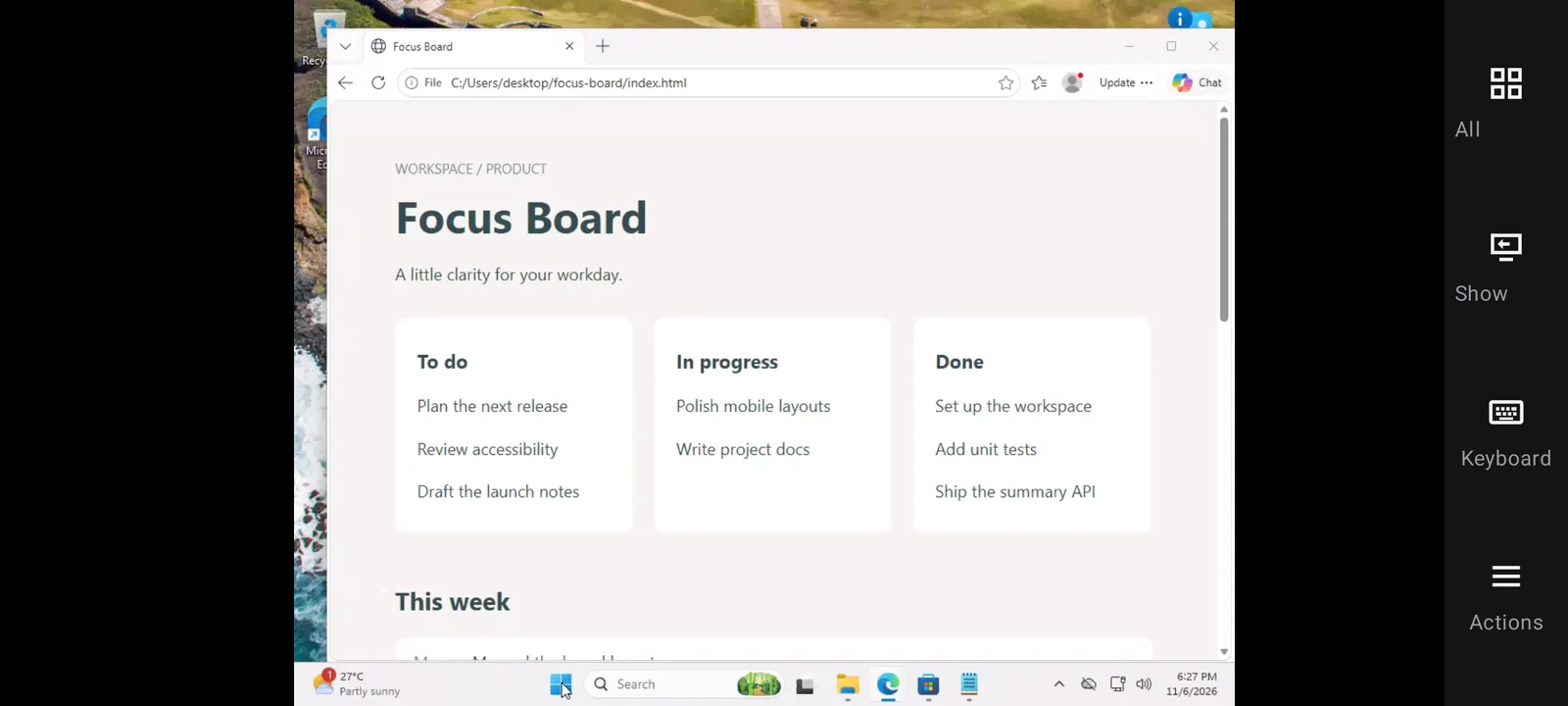
The desktop page has a toolbar (at the bottom in portrait, on the right in landscape) with Actions, Keyboard, Show desktop and All windows.
| Gesture | Result |
|---|---|
| Tap / double tap | Left click / double click under your finger |
| Two-finger tap, or press and release | Right click |
| Press, then move | Drag |
| Swipe up or down with one or two fingers | Scroll, with inertia |
| Pinch | Zoom the picture |
| Three-finger swipe up / down | All windows / Show desktop |
| Three-finger swipe left or right | Switch desktops |
Under Actions you can switch between touch and mouse pointer control, transfer files, sync the clipboard, turn on the computer’s sound, and set the frame rate and quality.
- Linux: X11 desktops. On Wayland, wlroots compositors (sway, Hyprland, labwc, river) work. GNOME and KDE Wayland sessions are not supported yet; choose an X11 session at the login screen.
- macOS 13 or later: the first time, allow Roamtty Desktop under Screen & System Audio Recording and Accessibility in System Settings › Privacy & Security on the Mac.
- Windows 10 1903 or later, Windows 11: someone must already be signed in to the desktop.
The picture uses UDP when it can (ports 60000–61000, the same as mosh) and switches to SSH by itself when a firewall blocks it. Only one phone can control a computer at a time. Servers with no graphical desktop do not show the button.
Settings
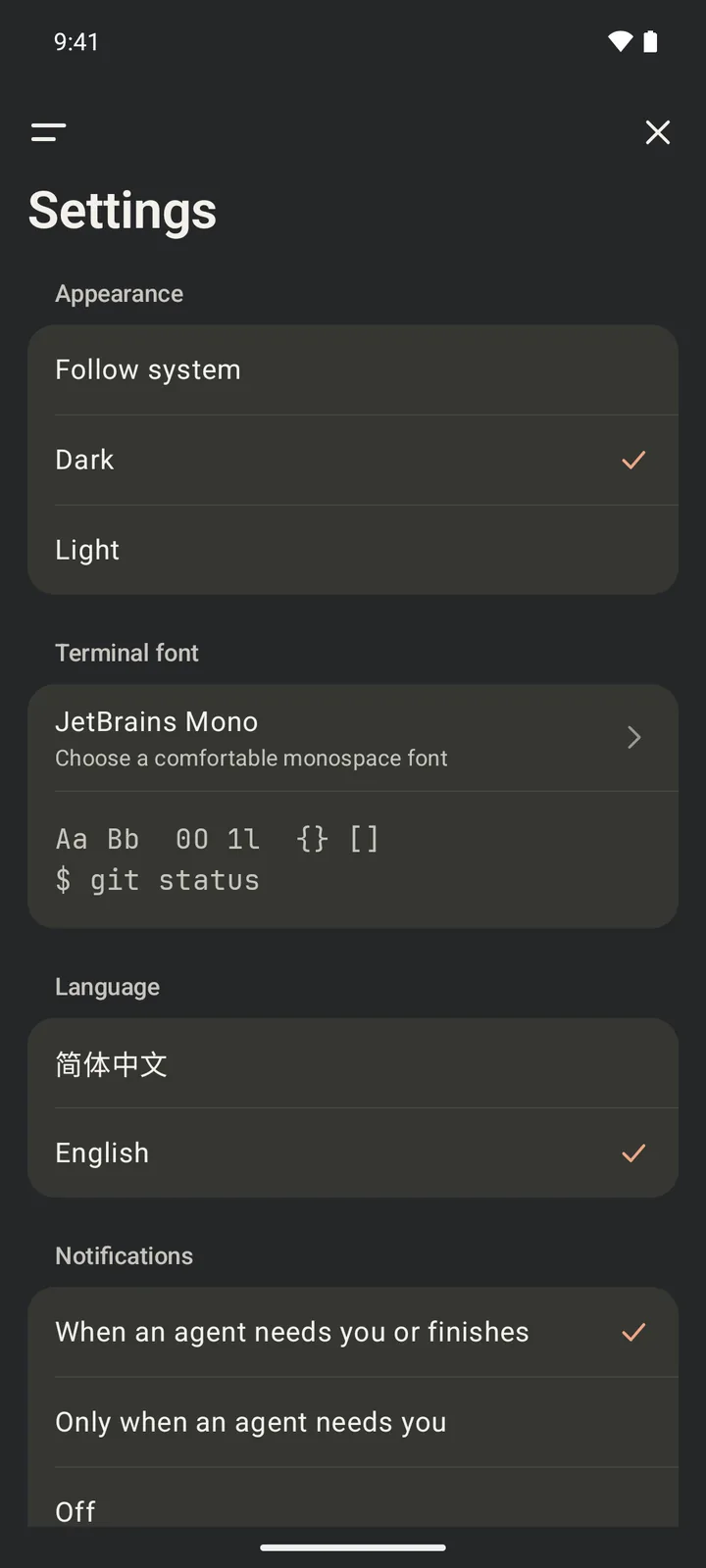
Open the menu at the top left → Settings:
- Appearance: follow the system, dark or light
- Terminal font: several built-in monospaced fonts, or import your own TTF / OTF font, with Nerd Font icons as a fallback
- Language: Simplified Chinese or English
- Download folder: where downloaded files are saved
Help in the same menu has a quick reference for gestures and controls.
Background and lock screen
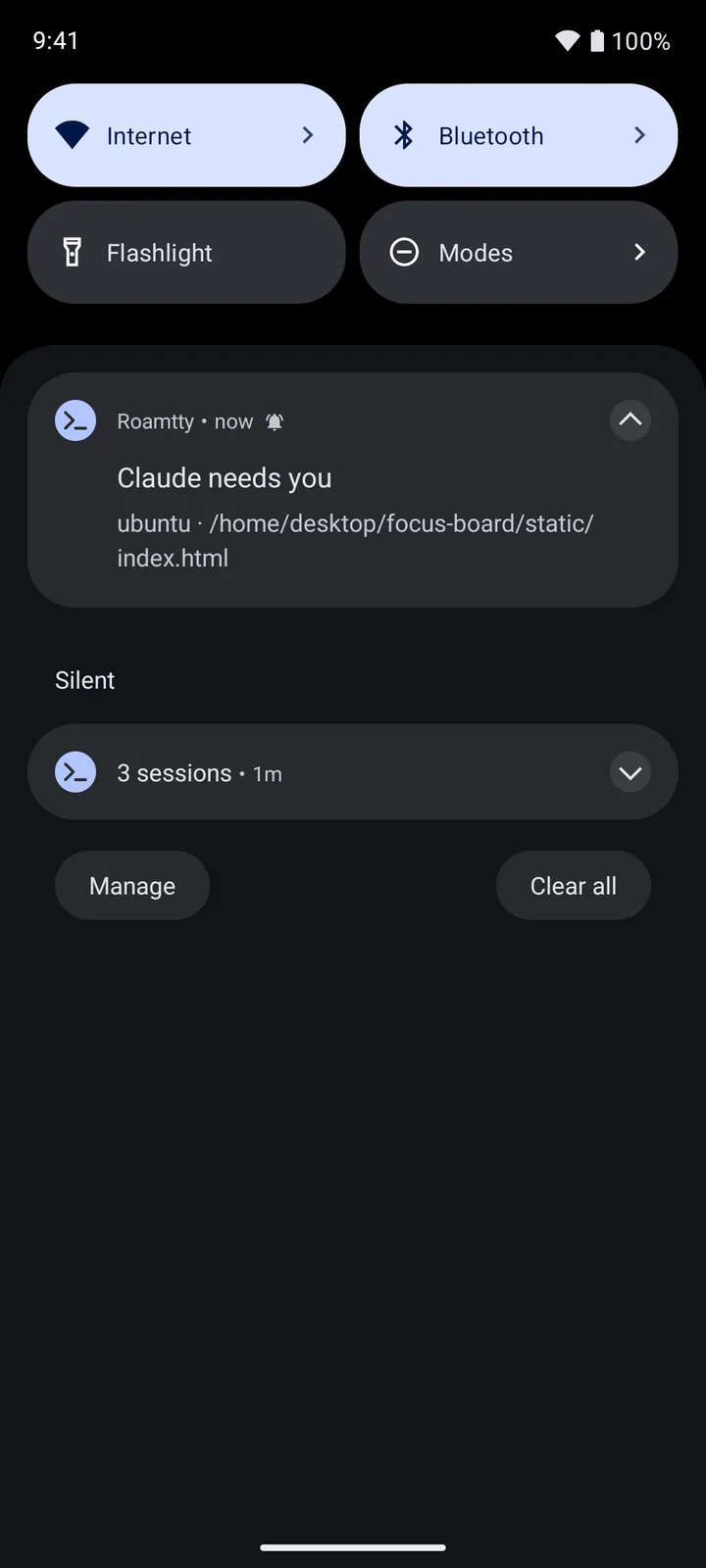
When an agent needs you or finishes a turn, the app sends a notification; tap it to open that session. Choose all alerts, only when an agent needs you, or none under Settings → Notifications.
- Android: turn on “Allow background activity” in Settings and exempt Roamtty from battery optimization. On Xiaomi, Huawei, OPPO, vivo and similar phones, also allow auto-start and lock the app in Recents. On OPPO, OnePlus and realme (ColorOS), also choose “Allow full background activity” in App info → Battery usage; otherwise the system cuts the network a few seconds after you leave and agent notifications wait until you come back (Settings → Background connection links there). While connected, Roamtty keeps a notification in the shade (hide it in Settings → Notifications → Hide the background connection notification; connections stay); when an agent needs you or finishes a turn, another notification says so, and tapping it opens that session.
- iPhone: iOS pauses network connections in the background. The task keeps running in tmux on the server and Roamtty reconnects when you return. iOS lets the app run only about half a minute after it leaves the screen; later changes are told once you are back.
What keeps a task alive is tmux on the server, not your phone staying online.
Connecting from anywhere: Tailscale
Tailscale puts your phone and server on one encrypted virtual network, each with a fixed 100.x.y.z address. The server needs no public IP and no open ports, and Roamtty needs no settings: its traffic goes through the system VPN.
- Server: on Linux run the commands below and sign in in the browser; on macOS or Windows install from tailscale.com/download.
curl -fsSL https://tailscale.com/install.sh | sh sudo tailscale up - Phone: install the Tailscale app and sign in with the same account.
- Add the server in Roamtty by its
100.x.y.zaddress (tailscale ip -4).
- Connect Tailscale before opening Roamtty; a phone runs one VPN at a time.
- mosh works inside the tunnel with no UDP ports to open.
- Use the server's own OpenSSH and leave Tailscale SSH (
--ssh) off, otherwise the host fingerprint changes. - Turn off key expiry for the server in the Tailscale admin console (Disable key expiry) so it doesn't drop off months later while you're away.
- If latency is high, run
tailscale ping <phone's 100.x address>on the server.via DERPmeans traffic is relayed; consider your own DERP relay (below).
Self-hosted Headscale (no Tailscale account)
Headscale is an open-source coordination server; phones and computers keep using the official Tailscale clients. You need a VPS with a public IP and a domain (hs.example.com below), with TCP 80 and 443 open.
# Install (see GitHub Releases; 0.29.5 at the time of writing)
wget -O headscale.deb https://github.com/juanfont/headscale/releases/download/v0.29.5/headscale_0.29.5_linux_amd64.deb
sudo apt install ./headscale.deb
Edit /etc/headscale/config.yaml:
server_url: https://hs.example.com
listen_addr: 127.0.0.1:8080
dns:
  magic_dns: true
  base_domain: ts.example.net   # must differ from the server_url domain
Serve HTTPS with Caddy (the proxy must pass WebSocket upgrades, which Caddy does by default), /etc/caddy/Caddyfile:
hs.example.com {
    reverse_proxy 127.0.0.1:8080
}
sudo systemctl enable --now headscale && sudo systemctl reload caddy
sudo headscale users create me
sudo headscale preauthkeys create --user 1 --reusable --expiration 24hJoin the devices:
- Server:
sudo tailscale up --login-server https://hs.example.com --authkey <key> - Android: Tailscale settings → Accounts → ⋮ → Use an alternate server, enter
https://hs.example.com; then ⋮ → Use an auth key and paste the key. - iPhone: Log in… → options menu → Use custom coordination server, enter the address, then run the registration command shown on the page on the VPS.
When sudo headscale nodes list shows both devices, you're done.
Your own DERP relay (when direct connections fail or lag)
When two devices can't connect directly, traffic goes through a DERP relay (still end-to-end encrypted). If Tailscale's relays are far away, typing can lag by hundreds of milliseconds. With Headscale, the simplest fix is its embedded DERP, in config.yaml:
derp:
  server:
    enabled: true
    region_id: 999
    region_code: "headscale"
    region_name: "Headscale Embedded DERP"
    verify_clients: true
    stun_listen_addr: "0.0.0.0:3478"
    private_key_path: /var/lib/headscale/derp_server_private.key
    automatically_add_embedded_derp_region: true
    ipv4: 203.0.113.10          # the VPS's public IP
  urls:
    - https://controlplane.tailscale.com/derpmap/default   # keep official relays as a fallback
  paths: []
Open UDP 3478 and restart Headscale; tailscale netcheck on the server should list your relay with the lowest latency.
With Tailscale's hosted service, with a relay on another server, or with a server in mainland China, deploy the official derper as described in the blog post Self-hosting a DERP relay for Tailscale and Headscale.
Common errors
| Message | What to do |
|---|---|
| Connection timed out | Check the address, port and that sshd is running, and that Tailscale is connected on the phone |
| Authentication failed | Check the username, password or key; for keys, the public key must be in the server's ~/.ssh/authorized_keys |
| The host fingerprint changed | The server was reinstalled, rekeyed or has Tailscale SSH on, or someone is intercepting the connection. Confirm the new fingerprint, then “Verify again…” |
| Neither tmux nor psmux was found | Install it with Install plugins in the host menu |
| Each host can keep up to 8 sessions | Close sessions you no longer need on that host |
| The agent isn't signed in or isn't found | Check in a plain terminal, as the same user, that claude / codex / grok runs and is signed in |
Still stuck? Email support@roamtty.com (never send passwords, private keys or real server addresses).